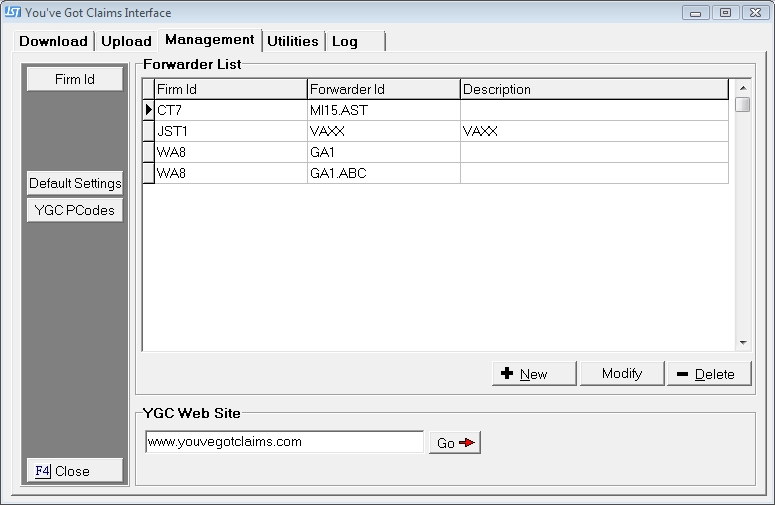
CollectMax allows users to setup some default values for the Forwarder Settings. These will be used by default when adding a new Forwarder but can be changed at any time. The Download Process will still alert you that a new forwarder has been added before adding any accounts to the forwarder to give you time to set the Forwarder settings up appropriately.
From the Management Tab in the You've Got Claims Interface, to display the Management Tab.
Click the  to display the YGC Interface Defaults Screen.
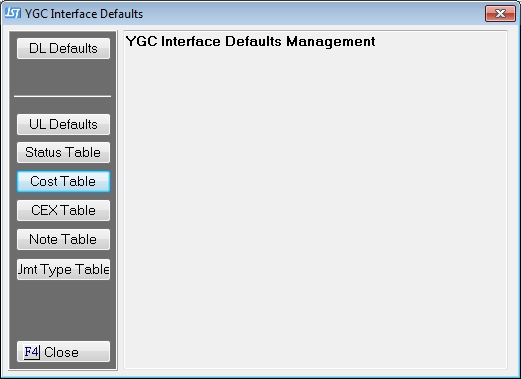
Click the  button to get to the Portfolio ID Defaults Screen. The first tab will be the Client Defaults.
Enter the Client Defaults on this screen, if your firm typically imports your YGC forwarded accounts with certain client settings including a client translation table.
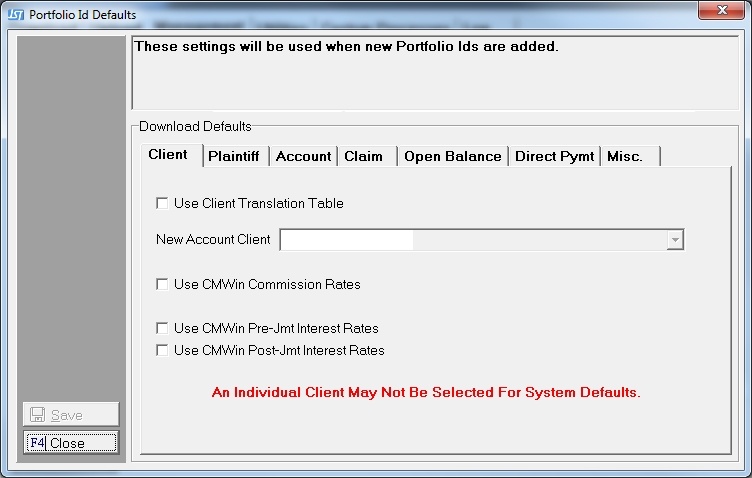
Select from the following:
Once set, continue on to the other defaults of click the  button to save these options. Remember all these options can be changed at the time the Forwarder is added or any time thereafter. If changed after accounts have been download, the download accounts will not respect the new settings.
Enter the Plaintiff Defaults on this screen if your firm typically selects the Plaintiff information from a particular field.
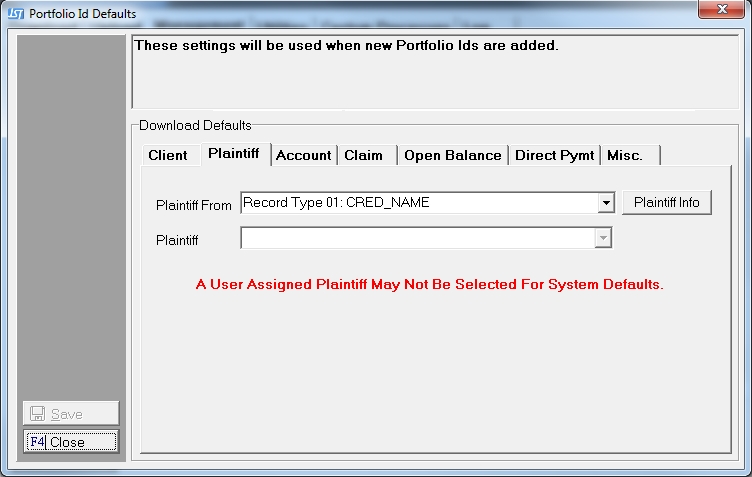
Select from the following:
Once set, continue on to the other defaults of click the button to save these options. Remember all these options can be changed at the time the Forwarder is added or any time thereafter. If changed after accounts have been download, the download accounts will not respect the new settings.
Enter the Account Defaults on this screen if your firm typically selects Account Memo information from a particular field.
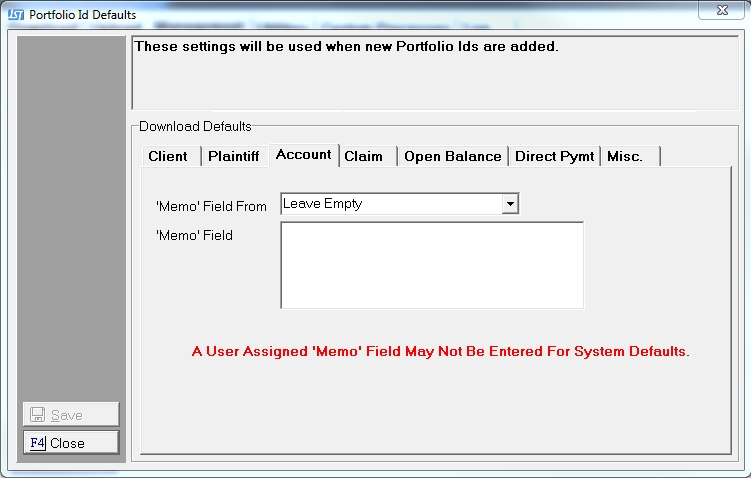
Select from the following:
Once set, continue on to the other defaults of click the button to save these options. Remember all these options can be changed at the time the Forwarder is added or any time thereafter. If changed after accounts have been download, the download accounts will not respect the new settings.
Enter the Claim Defaults on this screen if your firm typically selects the Claims settings from the same fields.
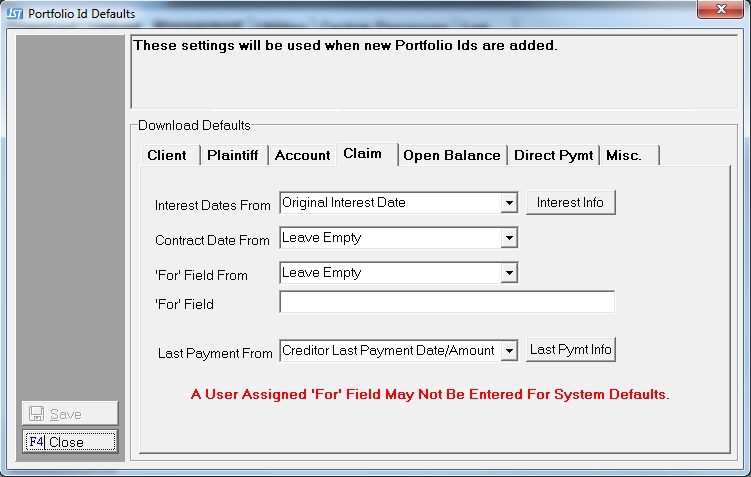
Select from the following:
Once set, continue on to the other defaults of click the button to save these options. Remember all these options can be changed at the time the Forwarder is added or any time thereafter. If changed after accounts have been download, the download accounts will not respect the new settings.
Enter the Open Balance Defaults on this screen if your firm typically selects opening interest balance settings from the same fields.
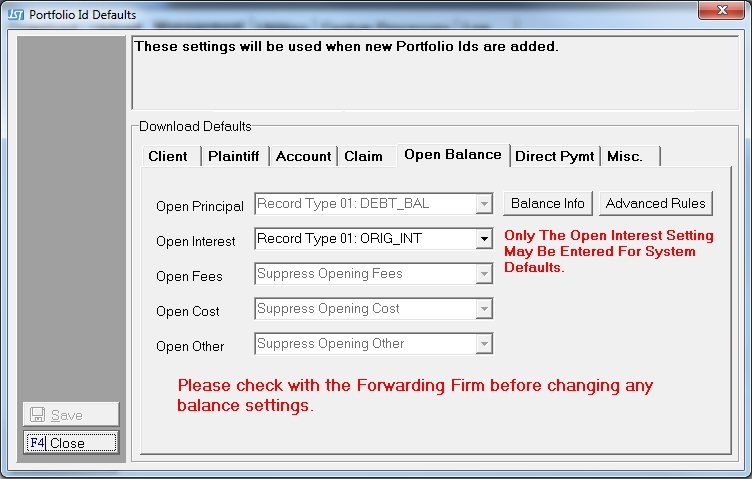
Select from the following:
Once set, continue on to the other defaults of click the button to save these options. Remember all these options can be changed at the time the Forwarder is added or any time thereafter. If changed after accounts have been download, the download accounts will not respect the new settings.
Enter the Direct Payment Defaults on this screen if your firm typically selects the Direct Payments to be posted.
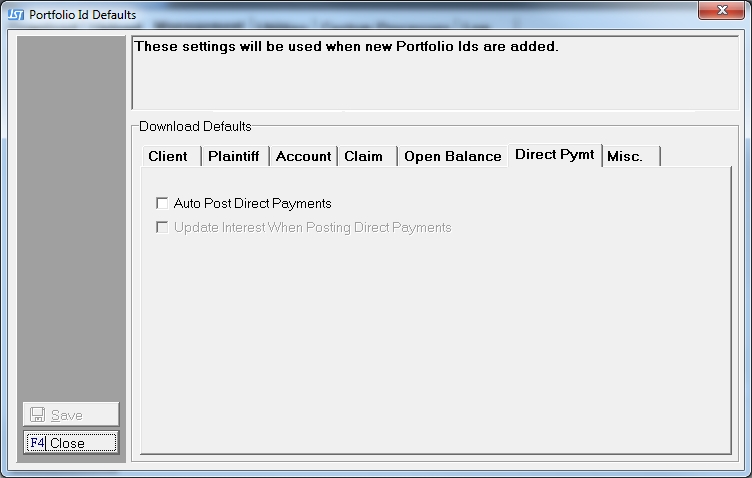
Select from the following:
Once set, continue on to the other defaults of click the button to save these options. Remember all these options can be changed at the time the Forwarder is added or any time thereafter. If changed after accounts have been download, the download accounts will not respect the new settings.
Enter the Miscellaneous Defaults on this screen if your firm typically selects any miscellaneous settings.
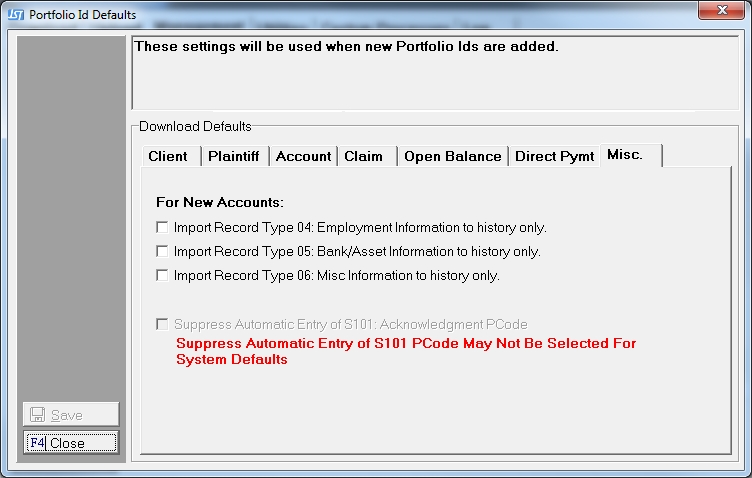
Select from the following:
Once set, continue on to the other defaults of click the button to save these options. Remember all these options can be changed at the time the Forwarder is added or any time thereafter. If changed after accounts have been download, the download accounts will not respect the new settings.
Click the  button to exit the DL Defaults screens.